VideoToWords Introduction
Ever spent hours trying to transcribe a long meeting recording or interview? You're not alone. Turning audio and video into text is one of those tasks that sounds simple but ends up eating away your entire afternoon. Whether you're a content creator trying to repurpose videos, a business owner who needs meeting notes, or someone who just wants written records of important conversations, manual transcription is a time sink nobody can afford.
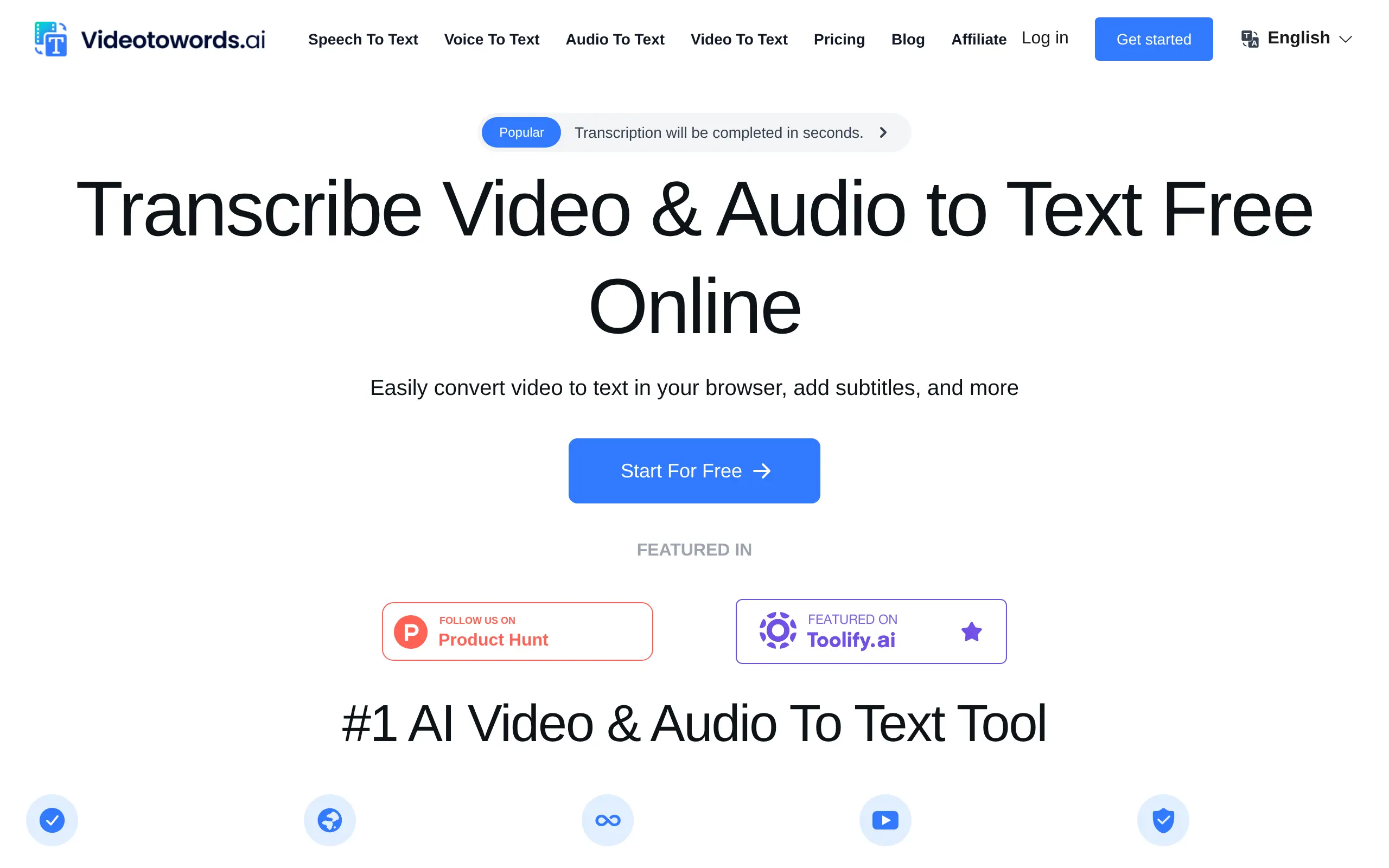
That's where VideoToWords comes in. This AI-powered tool promises to turn your videos and audio files into accurate text in minutes, not hours. With support for over 98 languages and accuracy rates hitting 99.9%, it's built for people who need reliable transcriptions without the headache. Plus, it works right in your browser – no software downloads, no complicated setup.
But here's what really matters: does it actually work as promised? And more importantly, is it worth your money when there are other transcription tools out there? Let's dig into what VideoToWords really offers and whether it lives up to the hype.
VideoToWords Key Features
High Accuracy Transcription: Get written text from your videos with up to 99.9% accuracy. This means you’ll spend less time fixing mistakes and more time using your transcripts for what matters.
Multilingual Support: Convert videos in over 98 languages into text. Whether you’re working with international clients or creating content for different markets, you’re covered.
Speaker Recognition: Know who said what with automatic speaker identification. This feature separates different voices in your recordings, making meeting notes and interview transcripts crystal clear.
AI-Generated Summaries: Get the main points from your transcripts in seconds. Instead of reading through pages of text, you’ll see a quick summary that helps you find what you need fast.
Extended File Support: Upload recordings up to 10 hours long without breaking them into chunks. Great for long meetings, webinars, or full-day conferences.
User-Friendly Editing Interface: Fix any small errors right in your browser with an easy-to-use editor. No need to download special software or learn complicated programs.
Our Take of VideoToWords
VideoToWords caught our attention as a transcription tool that promises to turn your videos and audio into text with minimal effort. After looking at what it offers, we think it’s a solid choice for business owners who need quick, accurate transcriptions without the headache of doing it manually.
The 99.9% accuracy claim is impressive, and if it delivers on that promise, you’ll spend way less time fixing errors compared to other transcription services. The fact that it supports 98 languages is huge if you work with international clients or create content for different markets.
What we really like is how fast it works. Getting your transcriptions done in under 5 minutes means you can move on to other tasks quickly. The cloud-based setup is convenient too since you don’t need to install anything or worry about your computer’s processing power.
The AI summaries feature is a nice touch. If you’re dealing with long meetings or interviews, getting a quick summary helps you find the important stuff without reading through pages of text.
There are some downsides to consider though. The editing features are pretty basic, so if you need to make complex changes, you might need to export the text to another program. And while the free version lets you test it out, the limitations on video length mean most businesses will need a paid plan.
The speaker recognition feature sounds useful for meetings and interviews, but based on what we found, it might have trouble with recordings where people talk over each other or if the audio quality isn’t great.
For small business owners looking to save time on transcription, VideoToWords seems like a practical investment. It’s especially valuable if you regularly record meetings, create video content, or conduct interviews. Just make sure the paid plans fit your budget and transcription needs before committing.
VideoToWords's Pricing
VideoToWords offers a free tier that includes 3 daily transcriptions with 30-minute file limits, alongside full access to features like translation to 100 languages, bulk exports, and unlimited storage.
For unlimited transcriptions, users can choose between a monthly plan at $19 per month or an annual plan at $199 per year (approximately $16.58 monthly), both supporting files up to 10 hours long.
All plans include the same comprehensive features and highest priority processing. The service operates on an auto-renewal subscription basis with no refunds available, though users can cancel anytime through their account settings. Custom membership packages are available for those needing specialized options by contacting support directly.
Final Thoughts about VideoToWords
So there you have it. VideoToWords brings a lot to the table for anyone who’s tired of spending hours on transcription work. With its fast processing times, support for tons of languages, and really high accuracy rates, it’s built for people who value their time and need reliable results.
Sure, it’s not perfect. The editing features could be better, and the free version has its limits. But if you’re looking at the bigger picture – saving hours of manual transcription work, getting accurate results you can trust, and having everything work right in your browser – those trade-offs start to make sense.
Think about how much time you currently waste on transcription. Now imagine getting that time back to focus on growing your business, creating more content, or just finishing work earlier. That’s the real value here.
The best way to know if VideoToWords fits your needs? Give it a try yourself. Test it with your own videos and audio files. See how accurate it really is. Check if the features match what you’re looking for. The free version lets you kick the tires before making any commitments.
Ready to turn your videos into text the easy way? Click the button below to get started with VideoToWords and see what all the fuss is about.
VideoToWords FAQs