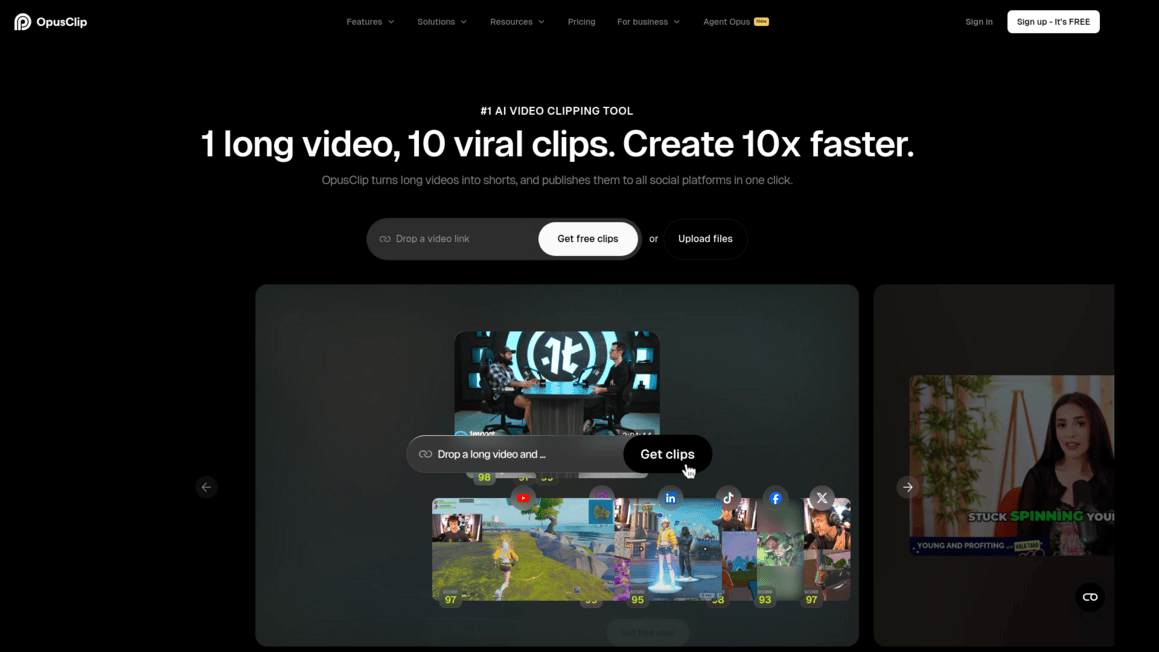
Opus Clip Introduction
You've spent hours recording a great video. Maybe it's a podcast, a webinar, or a long YouTube video. Now you need to chop it up into short clips for TikTok, Reels, and Shorts.
But sitting there scrubbing through footage, finding the best moments, editing them down, adding captions, and resizing everything? That can eat up your entire day. And if you're running a business or creating content on a tight schedule, you just don't have that kind of time to spare.
That's where Opus Clip comes in. It's an AI-powered tool that watches your long videos and pulls out the best parts for you. It handles the captions, the resizing, and even picks the moments most likely to grab attention. Sounds almost too good to be true, right? We put it to the test to see if it actually delivers on that promise, and whether it's worth your money.
Here's what we found.
Opus Clip Key Features
AI Clipping: Drop in a long video and let the AI pull out the best moments for you. You’ll get short clips ready for TikTok, Instagram Reels, and YouTube Shorts without watching through hours of footage yourself.
Animated Captions: Get eye-catching captions added to your clips automatically. This keeps viewers watching longer and makes your content accessible to people scrolling with their sound off.
AI Reframe: Your video gets resized to fit any social media format while the AI keeps the speaker or subject centered in frame. No more awkward cropping or cut-off faces when switching from landscape to vertical.
AI B-Roll: The tool drops in relevant supporting footage to fill visual gaps in your clips. This makes your short-form content look more polished and professional without you having to hunt for stock video.
Social Scheduler: Publish your finished clips across multiple social media platforms with one click. You can schedule posts ahead of time, so your content goes out consistently without you being glued to your phone.
Brand Templates: Create templates with your colors, fonts, and logos, then apply them to every clip you make. This keeps your content looking consistent no matter how many videos you’re putting out each week.
AI Audio Enhancement: Clean up messy audio by removing background noise and making speech clearer. Your clips will sound professional even if the original recording wasn’t done in a studio.
AI Voice-Over: Add narration to your videos without recording anything yourself. The AI generates natural-sounding voice-overs, which is great when you need to explain something or add context to a clip.
Our Take of Opus Clip
If you’re a small-to-medium business owner who’s sitting on a pile of long-form video content and wondering how to get more mileage out of it, Opus Clip is worth a look. The tool does a solid job of taking your longer videos and chopping them into short clips that work well on TikTok, Instagram Reels, and YouTube Shorts. It’s pretty clear that the AI behind it can save you a ton of time compared to manually scrubbing through footage and editing clips yourself.
The interface is easy to pick up, even if you don’t have video editing chops. That’s a big deal for busy business owners who can’t afford to spend hours learning complicated software. The animated captions, AI reframing, and brand templates give your clips a polished feel without much effort on your end. And with support for over 40 languages, it works for businesses that serve a global audience.
That said, there are some real concerns worth knowing about. Users have reported processing issues where projects stall or fail entirely. If you’re on a tight content schedule, that kind of unreliability can throw a wrench in your workflow. Customer support has also gotten mixed reviews, with some folks saying response times are slow and resolutions aren’t always helpful.
There’s another thing to keep in mind. If your video content doesn’t have a lot of talking, like tutorial screencasts with long silent stretches or gameplay footage, the AI won’t perform as well. It relies heavily on verbal cues to find the best moments, so talking-head style content and podcasts are where it really shines.
When you stack it up against similar tools on the market, Opus Clip holds its own with its AI features and ease of use. The time savings alone could justify the cost for many businesses. But we’d recommend trying it with your specific type of content before committing to a paid plan long-term, just to make sure the output matches what you need and the processing works reliably for your use case.
Opus Clip's Pricing
OpusClip offers four plans. The Free plan costs $0 and includes basic AI clipping by spoken words, 9:16 aspect ratio reframing, animated captions with watermark, dynamic layout switch, screenshare/gameplay layout, one brand template, and export limited to 1080p with a 3-day download window. Media storage expires after 3 days and support is via Discord and AI chat.
The Starter plan costs $15 per month and adds faster processing, more video import sources including Google Drive, Vimeo, Zoom, Rumble, and StreamYard, clipping by visual objects, sound, and emotion, genre-specific curation, virality scoring, reprompting to refine results, watermark-free exports at the highest resolution available with a 30-day download limit, text and timeline-based editing, filler word and pause removal, AI B-Roll generator at 3 clips per month, stock B-Roll at 3 clips per month, AI voice-over at 20 per day, text overlay, posting to YouTube Shorts, TikTok, and Instagram, and clip title, description, and hashtag generation. Media storage expires after 29 days.
The Pro plan costs $29 per month and includes everything in Starter plus even faster processing, additional import sources such as Dropbox, Twitch, Facebook, Instagram, TikTok, LinkedIn, X, Loom, Riverside, Frame.io, Apple Podcasts, and Medal.tv, up to 30GB per video uploads, topics search and prompt-to-clip, 100GB fixed storage, custom fonts up to 2, auto censor with a default word list, moving object tracking, 9:16, 1:1, and 16:9 aspect ratios, AI B-Roll at 50 clips per day, unlimited stock B-Roll, speech enhancement 10 times per day, transition effects, music and media asset uploads, up to 2 brand templates, intro/outro cards, brand vocabulary, custom media library, bulk export, export to Adobe Premiere Pro and DaVinci Resolve, social media scheduling and posting to YouTube Shorts, TikTok, Instagram, LinkedIn, Facebook, and X, posting to multiple profiles, a team workspace for 2 users expandable to 4, auto-save projects, folder management, clip analytics, and Zapier integration up to 300 credits per month.
The Business plan offers custom pricing and includes everything in Pro plus a dedicated enterprise processing queue with the fastest servers, auto video import from CMS or cloud servers, customized storage, unlimited brand templates, unlimited custom fonts, custom censored word lists, speaker-based caption colors coming soon, 4K scheduling and downloads, unlimited member seats, unlimited media storage, custom folders, sub-teams, member permissions coming soon, real-time trend analysis, API access, SSO, software license management, MSA, priority support with a dedicated Slack channel, custom onboarding, invoice and ACH payment, CMS integration, full Zapier integration, and scheduler API.
Final Thoughts about Opus Clip
So here’s the bottom line. If you’re creating long-form video content and you’re not repurposing it into short clips, you’re leaving attention on the table.
Opus Clip makes that repurposing process way faster and easier than doing it by hand. It’s not perfect, and it works best when your content has a lot of talking. But for podcasters, coaches, and business owners who are always on camera, it can be a real time saver.
The best way to know if it’s right for you is to test it with your own content. See how the clips turn out. See if the captions look good. See if the AI picks the right moments. That’ll tell you more than any review ever could. If you’re ready to give it a shot and see what it can do with your videos, click the button below to try Opus Clip for yourself.
Opus Clip FAQs