Canva Text to Image Introduction
You've been there before. You need a specific image for a social media post or a presentation, and you just can't find the right one. Stock photos feel generic.
Hiring a designer costs too much. And creating something from scratch takes hours you don't have.
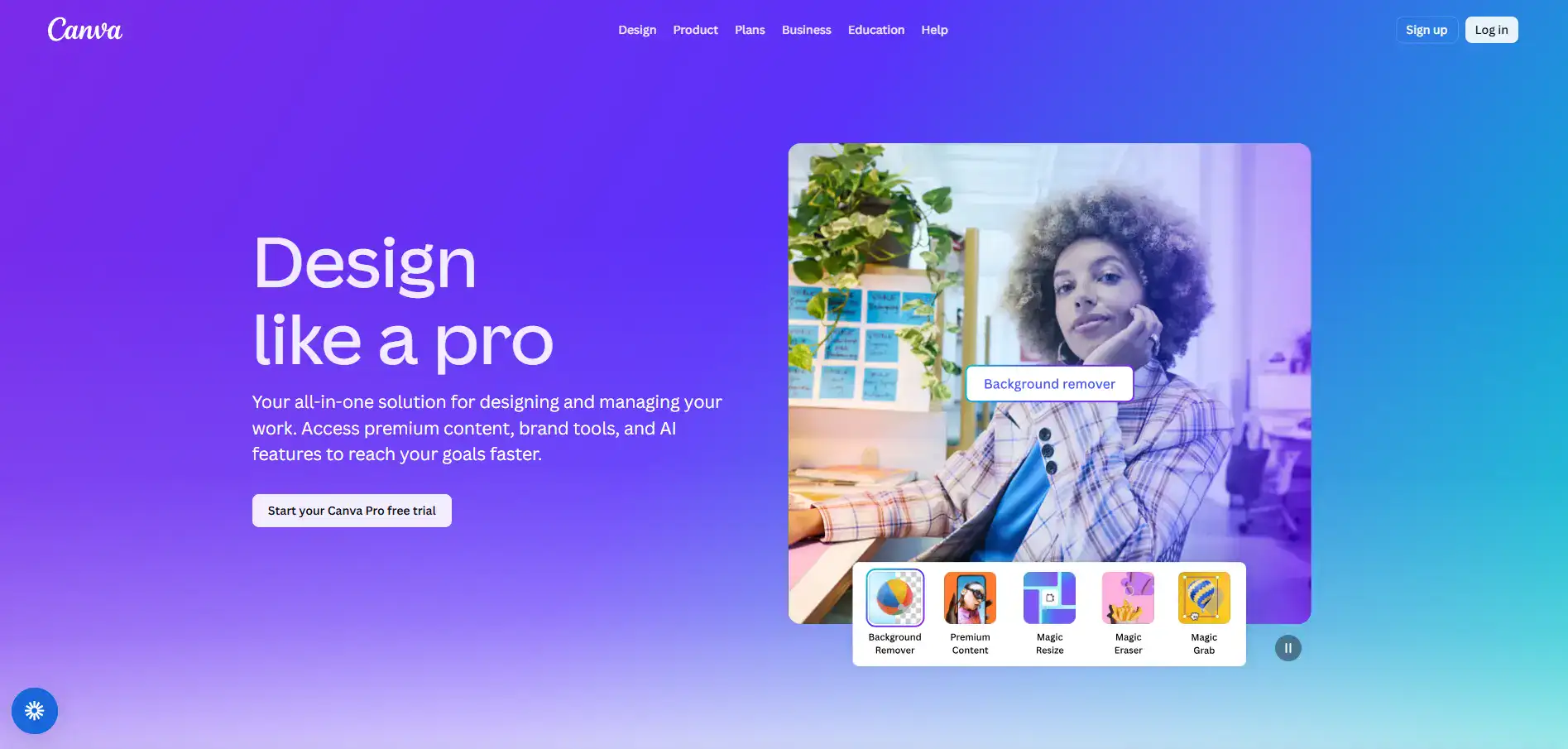
That's the exact problem Canva's Text to Image feature is trying to solve. It lets you type a description of what you want, and then it uses AI to generate a custom image right inside Canva.
No design skills needed. No extra software. No big budget. Since launching in March 2023, it's become a go-to option for small business owners and creators who need visuals fast but don't want to sacrifice originality.
But does it actually deliver? And is it good enough for your needs? Let's break it down.
Canva Text to Image Key Features
AI-Generated Images: Type a description of what you want, and Canva turns your words into a unique image in seconds. It’s great when you can’t find the right stock photo or don’t have the budget for a custom graphic.
Multiple Style Options: Pick from styles like cinema, manga, watercolor, and drawing to match the look you’re going for. This means you can keep your visuals consistent with your brand without hiring a designer.
Seamless Integration: Everything happens right inside the Canva editor, so you can drop your new image straight into whatever you’re working on. No downloading, uploading, or switching between apps.
User-Friendly Interface: You don’t need any design skills or AI experience to use this. Just type what you want to see, pick a style, and let Canva do the heavy lifting.
Our Take of Canva Text to Image
If you’re a small or medium business owner who needs custom visuals but doesn’t have a design team, Canva’s Text to Image feature is worth a look. It lives right inside the Canva editor, so you don’t have to jump between apps or learn a whole new platform. You type in what you want, pick a style, and get an image in seconds. That’s a real time saver when you’re putting together social media posts, presentations, or marketing materials on a tight deadline.
That said, it’s not perfect. If you need super specific or highly detailed images, you might find the creative control a bit limiting compared to standalone AI image generators like Midjourney or DALL-E. The image quality is solid for everyday use, but it might not cut it for high-end professional projects where every pixel matters.
The sweet spot here is convenience. You’re already in Canva working on a design, and you need a quick custom image that fits your vision. For that use case, this feature delivers. It won’t replace a professional designer or a dedicated AI art tool, but it fills a gap for busy business owners who want decent custom visuals without spending hours or extra money to get them.
Canva Text to Image's Pricing
Canva offers a range of plans for individuals, teams, and large organizations, each designed to support different creative needs.
The Free plan, priced at ₱0 per month for one person, is ideal for beginners and casual users, providing access to a drag-and-drop editor, over 1.6 million templates, 4.7 million photos and media assets, 5GB of cloud storage, and basic AI features with up to 200 standard or 20 premium AI uses. It also includes a simple Brand Kit and access to tools like Affinity, with upcoming features such as Canva AI connectors and offline mode.
The Pro plan, at ₱300 per month per person, unlocks more advanced design capabilities, including premium tools like background remover, resize, and translation, access to 3.6 million templates and 141 million premium assets, 100GB of storage, up to five Brand Kits, social media scheduling, and significantly increased AI usage—up to 10 times more than the Free plan—along with access to Affinity with AI and upcoming features like Canva AI 2.0.
For more advanced needs, the Business plan costs ₱420 per person per month and is designed for individuals and teams aiming to scale content creation and marketing. It includes everything in Pro plus collaboration and admin tools, up to 100 Brand Kits with approval workflows, 500GB of cloud storage, a 10% discount on print orders, and access to advanced platforms like Leonardo.Ai and Flourish. It also provides 20 times more AI usage compared to the Free plan and supports additional AI add-ons.
Finally, the Enterprise plan is tailored for large organizations, offering enterprise-level security, SSO and SCIM provisioning, custom app integrations, up to 1,000 Brand Kits with multi-team management, priority support with a dedicated success manager (for organizations with 150+ seats), 1TB of cloud storage, and the same advanced AI capabilities and integrations as the Business plan. This plan is customizable, with pricing available upon request through direct consultation.
Final Thoughts about Canva Text to Image
So here’s the bottom line. If you’re already using Canva and you need custom visuals without the hassle, Text to Image is a solid addition to your workflow.
It won’t blow your mind with precision or replace a dedicated AI art tool, but that’s not really what it’s for. It’s for those moments when you need something original, you need it fast, and you don’t want to leave the platform you’re already working in. Think about your current process.
How much time do you spend hunting for the right image or trying to make a generic stock photo work? If the answer is “too much,” this feature could save you real hours every week. And those hours add up.
The best way to know if it’s right for you is to try it yourself. Type in a few prompts, test out the different styles, and see if the results match what you need. You might be surprised at how well it works for everyday content. If you want to give Canva’s Text to Image a spin, click the button below to get started.
Canva Text to Image FAQs